


Pet Medical Record: Examinations, Hospitalization & Prescriptions
The Pet Medical Record is the single source of truth for everything a vet does for a patient. Every appointment, examination, prescription, surgery, vaccination, and hospitalization is stored here in chronological order and stays linked to the pet for the rest of its life.
How to access
- From the main menu, click Owner & Pet.
- Open the Pet tab and search by pet name or medical record number.
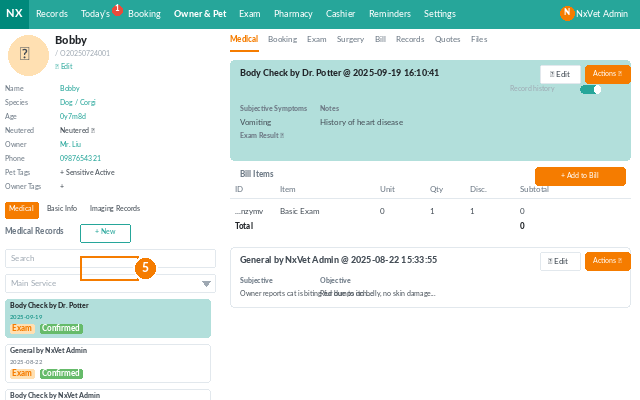
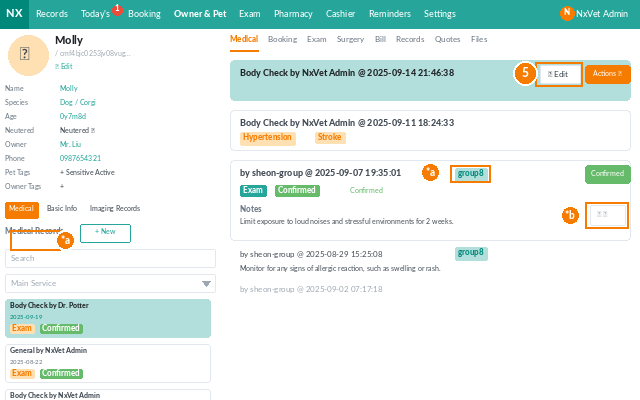
- Click the pet to open its profile, then switch to the Medical Record tab.
What you can do here
- Browse the timeline — every record is sorted newest-first so you can see the most recent visit at a glance.
- Filter by record type — outpatient, hospitalization, surgery, vaccination, examination, or chronic medication.
- Click any record to see the full detail page (subjective symptoms, vital signs, diagnosis, treatment, prescription, attached files, bill).
Adding an outpatient consultation
- From the medical record list, click Add Consultation.
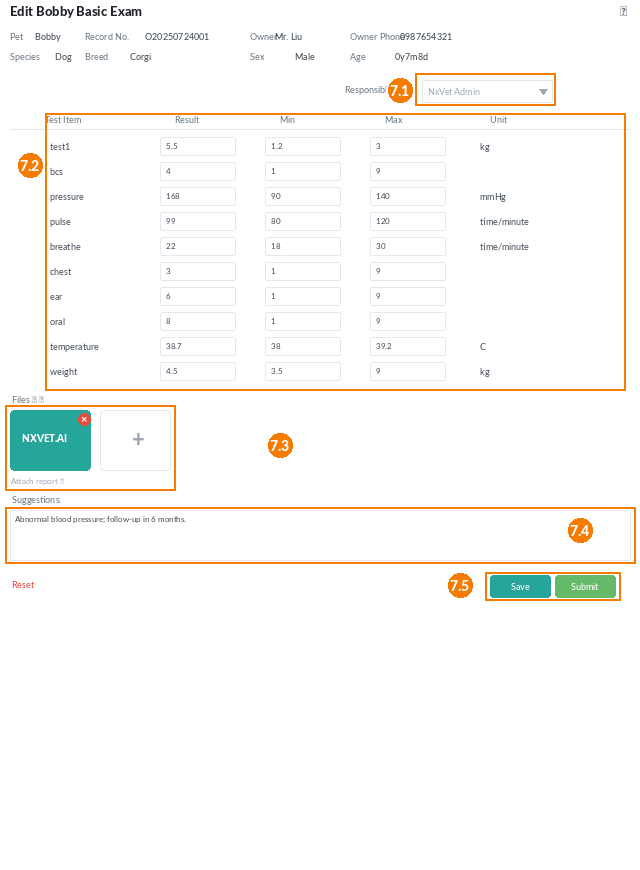
- Pick the Attending vet and Main service.
- Record the visit:
- Subjective symptoms — what the owner reports.
- Vital signs — pushed from connected devices or entered manually.
- Examinations — add lab tests, imaging, or other diagnostics.
- Diagnosis — ICD-style or free text.
- Treatment & Prescription — add drugs, dosage, and frequency. The bill updates automatically.
- Attach any image, PDF, or lab report.
- Click Save to keep the record open or Complete to lock it.
Adding examinations
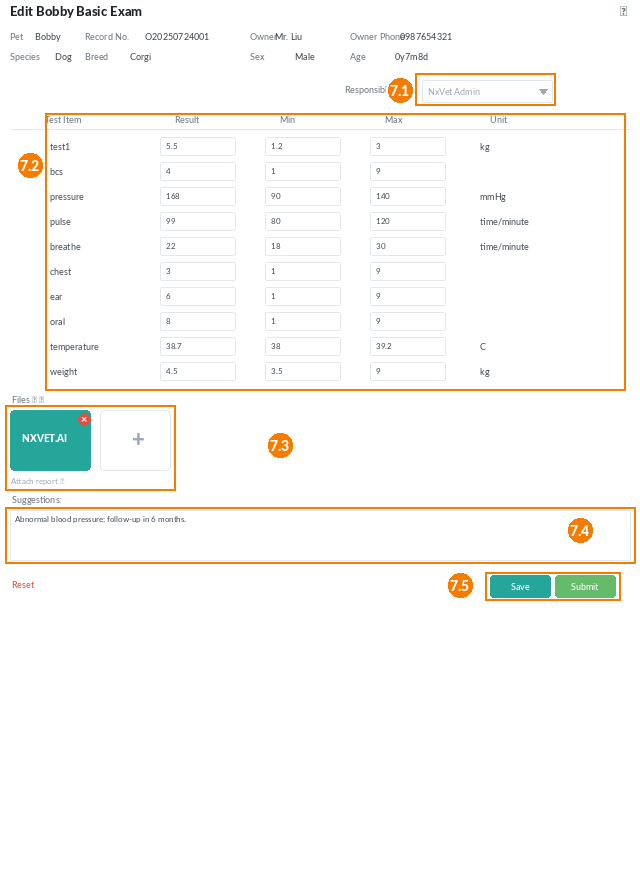
- Inside a medical record, click Add Examination.
- Pick an examination type (blood work, urinalysis, imaging, etc.) and the responsible technician.
- Values can be entered manually or pushed from connected devices — you can edit instrument values at any time.
- Attach the report and write a summary in Suggestions.
- Click Submit to write the results back into the medical record.
Adding a prescription
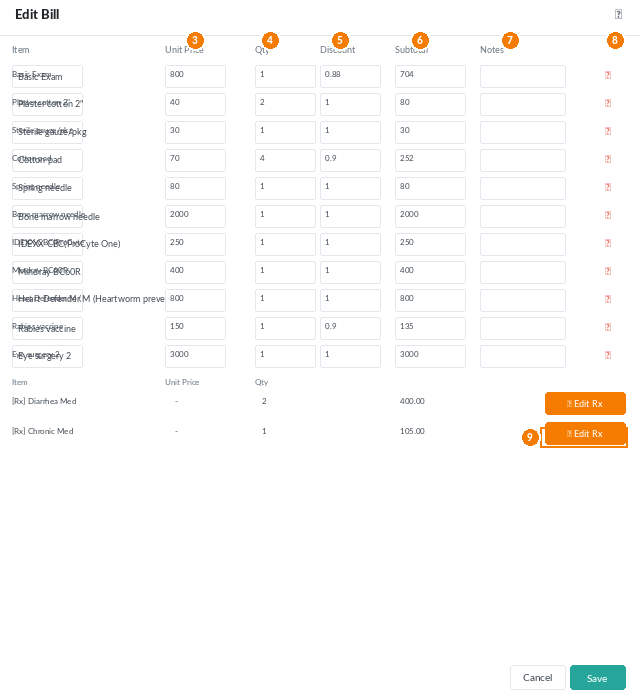
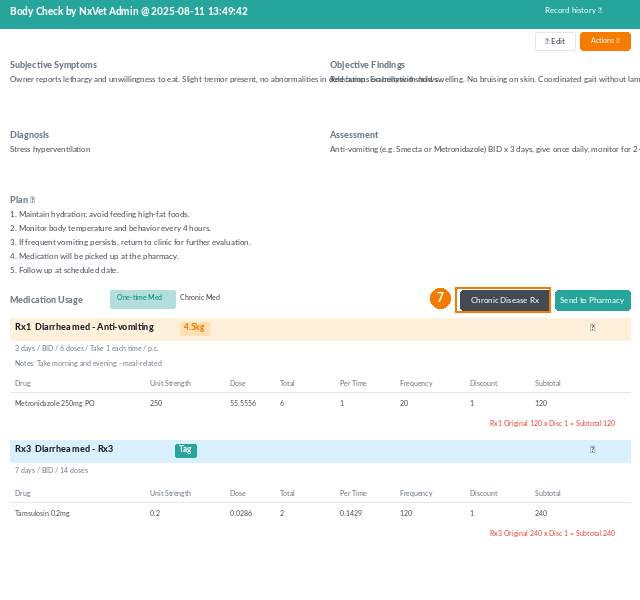
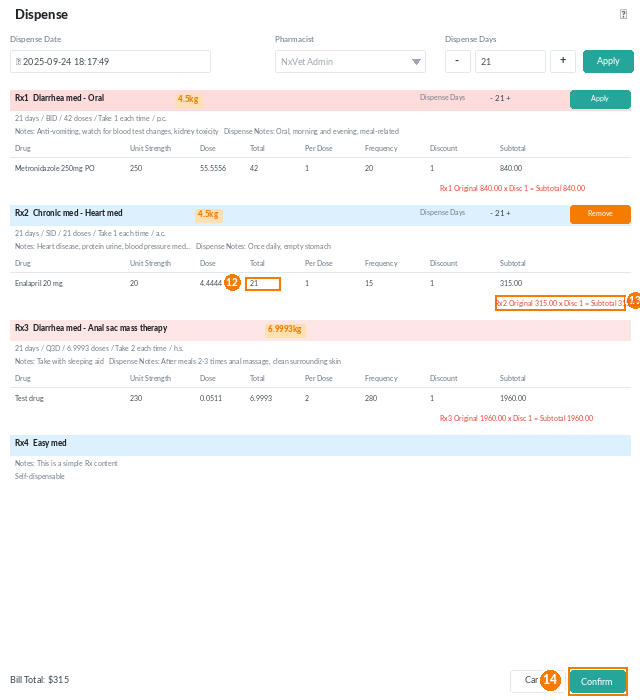
Prescriptions come in three flavors, each routed to a different pharmacy queue:
- Outpatient prescription — medication dispensed alongside today’s consultation.
- Medication pick-up prescription — chronic-disease refills (e.g., heart medication taken monthly).
- Surgical prescription — pre- and post-op medication tied to a surgery record.
For each prescription, fill in the Rx name, dosage form, total quantity, dose per administration, and duration. The system flags controlled drugs automatically.
Recording a surgery
- Click Add Surgery from the medical record.
- Record the procedure type, attending surgeon, anesthesia, start/end times, and surgical notes.
- Attach an operative report or photos.
- Link a surgical prescription if needed.
Recording a hospitalization
- Click Admit to start a hospitalization record.
- Track daily vital signs, fluid therapy, medication administration, and progress notes.
- The billing is generated and finalized at discharge — not before.
Recording vaccinations
- Click Add Vaccination.
- Pick the vaccine product (the system flags expired stock automatically) and dose.
- The system auto-creates a Reminder for the next booster based on the vaccine schedule. It will be pushed to the owner via LINE@ or SMS.
Tip
Always click Complete once a record is finalized. Completed records lock most fields and become the version that prints on the owner’s receipt, so reception and pharmacy staff know they’re looking at the source of truth, not a half-finished draft.